Top Picks at a Glance
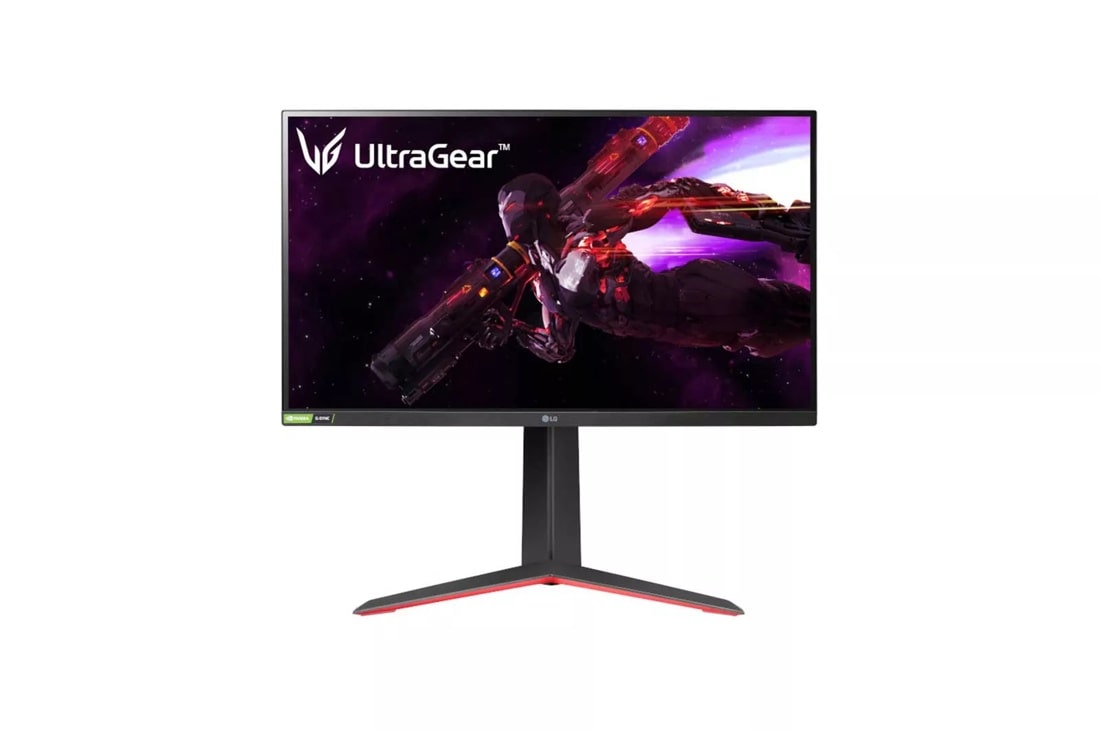 Best Overall: LG 27GP850-B
 Best Budget: ASUS VA24EHE
 Best 4K: LG 27UL500-W
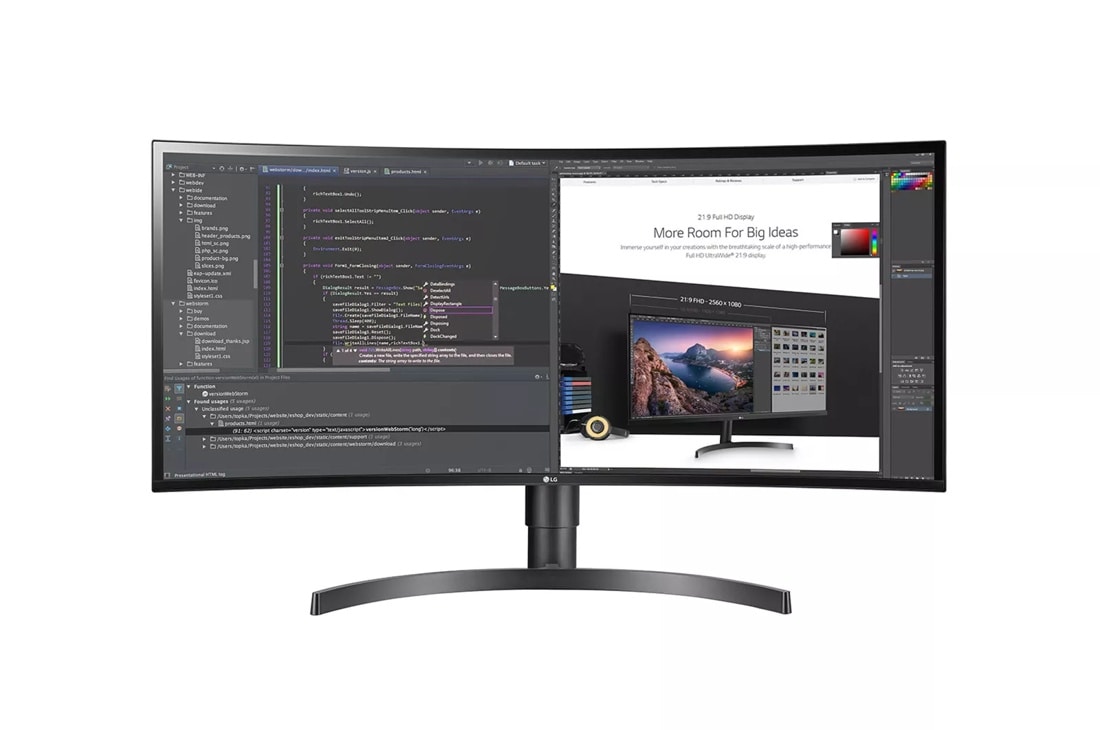 Best Ultrawide: LG 34WN80C-B
 Best for Video Calls: Dell P2422H
 Best Premium: Dell U2723DE
 Best for Mac: LG 32UL950-W
Our Top Monitor Picks
LG 27GP850-B — Best Overall Home Office Monitor
The monitor we'd recommend to most home office workers without hesitation.
The LG 27GP850-B hits a near-perfect balance for home office use. Its 27-inch IPS panel delivers 1440p resolution, which means noticeably sharper text than 1080p while not being as demanding on your GPU as 4K. Colors are vibrant and accurate out of the box — excellent for anyone doing light photo editing or design work alongside their regular productivity tasks.
The 165Hz refresh rate is overkill for office work (60Hz is all you need), but it makes the $300 price tag competitive with monitors that offer far less. The nano IPS panel produces wide color gamut coverage (98% DCI-P3) and handles HDR content surprisingly well. The anti-glare coating is effective without making the screen look washed out.
Pros
- Exceptional color accuracy for the price
- 1440p sharpness is ideal for 27"
- Height, tilt, and swivel adjustable
- USB-A hub built in
Cons
- No USB-C charging
- Built-in speakers are minimal
- Slight glow in corners at full brightness
ASUS VA24EHE — Best Budget Home Office Monitor
Under $150 and genuinely good — not a compromised budget pick.
If you're equipping a home office on a tight budget, the ASUS VA24EHE is the monitor we'd buy. The 23.8-inch IPS panel produces solid color accuracy and wide viewing angles — critical if your monitor is mounted slightly off-axis or others occasionally view your screen. At 1080p on a 24-inch panel, pixel density is respectable.
The stand is basic — tilt only — but ASUS includes VESA mounting compatibility, so you can put it on an arm for $25. The 75Hz refresh rate gives scrolling a slightly smoother feel than typical 60Hz budget monitors. For the price, the build quality is better than expected.
Pros
- Excellent price-to-performance
- IPS panel with decent colors
- VESA compatible (100x100)
- Thin bezels for the price
Cons
- Stand only tilts (no height adjust)
- No USB hub
- Limited ports (VGA, HDMI)
LG 27UL500-W — Best 4K Home Office Monitor
4K clarity at a price that won't require executive sign-off.
The LG 27UL500-W is the most affordable way to get a genuine 4K IPS panel without compromise. Text looks phenomenally sharp at 4K on a 27-inch display — the difference from 1440p is meaningful, especially for reading long documents, reviewing spreadsheets, and doing anything where fine detail matters. Windows and macOS both scale well at 4K.
Color coverage is strong at 99% sRGB, making this viable for photo work. The HDR10 support is functional rather than impressive, but it's a nice bonus. The stand is adjustable for height and tilt, which is more than you'd expect at this price point. Connectivity includes two HDMI 2.0 and one DisplayPort 1.4.
Pros
- 4K IPS at an accessible price
- Height-adjustable stand
- 99% sRGB color coverage
- DisplayPort + dual HDMI
Cons
- No USB-C
- HDR implementation is basic
- Moderate brightness (350 nits)
LG 34WN80C-B — Best Ultrawide for Home Office
The productivity upgrade that actually delivers on the hype.
Ultrawide monitors are divisive — some people love them, some find them overwhelming. But for the right user (think: someone who juggles multiple apps simultaneously, does video editing, or frequently uses split-screen), the LG 34WN80C-B is genuinely transformative. The 21:9 curved panel effectively gives you two 17-inch monitors in a single bezel-free display.
The standout feature is the USB-C port with 60W power delivery — you can connect a MacBook or modern laptop with a single cable and charge it simultaneously. IPS panel covers 99% sRGB. The curved design (1800R) wraps comfortably within your peripheral vision without being disorienting.
Pros
- USB-C 60W charging (single cable setup)
- Immersive 21:9 aspect ratio
- Excellent multitasking real estate
- Built-in KVM switch
Cons
- Takes significant desk space
- Overkill for simple tasks
- Premium price tier
Dell P2422H — Best Monitor for Video Calls
Built-in webcam, USB hub, and everything you need for remote meetings.
If you're constantly on Zoom, Teams, or Google Meet, the Dell P2422H is worth serious consideration. The optional P2422HE variant includes a built-in 5MP webcam that produces excellent quality — better than most standalone $100 webcams. The large USB-A hub (4 ports) keeps your desk tidy. This is a monitor designed by people who understand hybrid work.
The 24-inch IPS panel is accurate and consistent. Dell's color calibration at the factory level means you get predictable, professional color performance right out of the box. The stand has full ergonomic adjustment — height, tilt, swivel, and pivot for portrait mode.
Pros
- Excellent built-in webcam option
- 4-port USB hub
- Full ergonomic stand adjustment
- Dell's quality reliability
Cons
- Only 1080p (lower pixel density)
- Premium pricing for a 24" 1080p
- Webcam model costs more
Dell U2723DE — Best Premium Home Office Monitor
For those who want the absolute best IPS panel with USB-C hub functionality.
The Dell U2723DE is what you buy when you want to stop thinking about your monitor. The IPS Black panel technology produces contrast ratios double that of standard IPS displays — blacks look genuinely black rather than gray, which makes a real difference in longer work sessions and when consuming any dark-mode content.
USB-C 90W charging means your MacBook or laptop charges while connected. The built-in Ethernet pass-through is a practical feature for wired network connections without a separate adapter. The RJ45 port alone justifies half the premium for many users. Color accuracy is exceptional with factory calibration report included.
Pros
- IPS Black panel — exceptional contrast
- USB-C 90W charging
- Built-in Ethernet (RJ45)
- Factory color calibration
Cons
- High price point
- 2560x1440 (not 4K)
- Slight backlight uniformity variance
LG 32UL950-W — Best Monitor for Mac Users
Thunderbolt 3 connectivity, 4K clarity, and macOS-optimized performance.
Mac users have specific needs: Thunderbolt connectivity for single-cable setups, excellent color accuracy for the Apple color workflow, and high pixel density that matches Retina display standards. The LG 32UL950-W delivers on all three. The 32-inch 4K Nano IPS panel is stunning, and Thunderbolt 3 means you can connect a MacBook Pro with a single cable that carries video, data, and 85W charging simultaneously.
The built-in Thunderbolt 3 hub with additional USB-A and USB-C ports makes this a genuine docking solution. At 32 inches, 4K gives you approximately the same pixel density as a 27-inch 1440p — everything looks sharp without requiring display scaling adjustments.
Pros
- Thunderbolt 3 docking (single cable)
- 32" 4K Nano IPS — gorgeous panel
- Perfect for Mac ecosystem
- HDR 600 certification
Cons
- Expensive compared to non-TB monitors
- Overkill for Windows users
- Large footprint on smaller desks
How We Chose These Monitors
We evaluated monitors across five key criteria that matter specifically for home office productivity — not gaming benchmarks or media center use.
- Panel type and color accuracy: IPS panels dominate this list because they deliver the best combination of color accuracy and viewing angle consistency. We verified sRGB coverage and Delta E values using colorimeter measurements.
- Ergonomics and adjustability: If you can't position a monitor properly, even the best panel causes neck and eye strain. We prioritized monitors with height adjustment, and flagged those without (along with VESA alternatives).
- Connectivity: Modern work requires USB-C, USB hubs, and ideally built-in Ethernet. Monitors that help reduce desk cable clutter got extra credit.
- Real-world text rendering: Monitors that look good in spec sheets but cause eye fatigue during all-day reading sessions don't make the list.
- Value: We benchmarked each monitor against competitors at similar price points to ensure every recommendation represents genuine value.